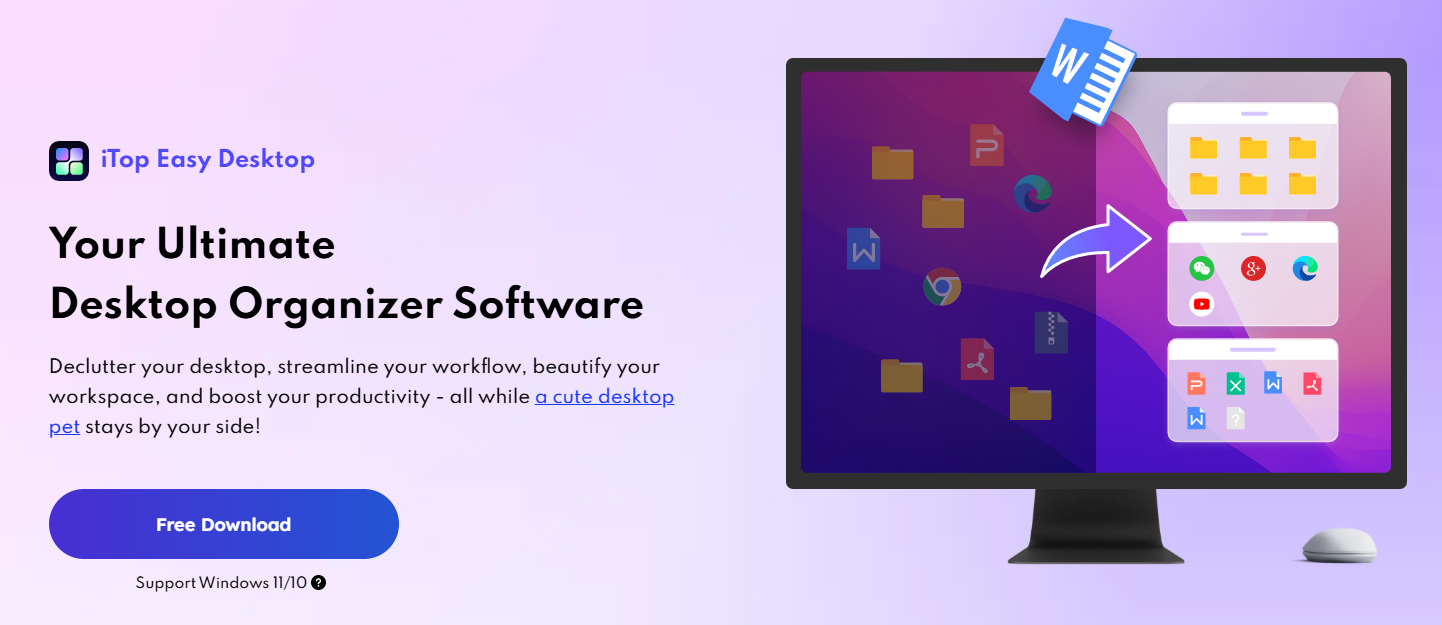
I used to leave files everywhere because I thought I’d remember where I put them. Of course, I never did. The more I saved to the desktop, the more crowded and stressful it became, and the less I wanted to deal with it.
Once I tried desktop organizer software that could group, hide and sort my files automatically. I realised file management did not have to be a boring cleanup task. It could actually feel like arranging my own workspace.
What is iTop Easy Desktop
iTop Easy Desktop is a handy Windows tool designed to instantly clean up messy screens by organizing files, shortcuts, and folders into customizable, sleek boxes. It works automatically in the background, letting you group items by type or name while tweaking colors and transparency to match your setup. Beyond clutter management, it brings your workspace to life with live wallpapers, handy widgets, and interactive desktop companions. Overall, it’s a simple way to boost productivity without spending time manually sorting your files.
What Made iTop Easy Desktop Different
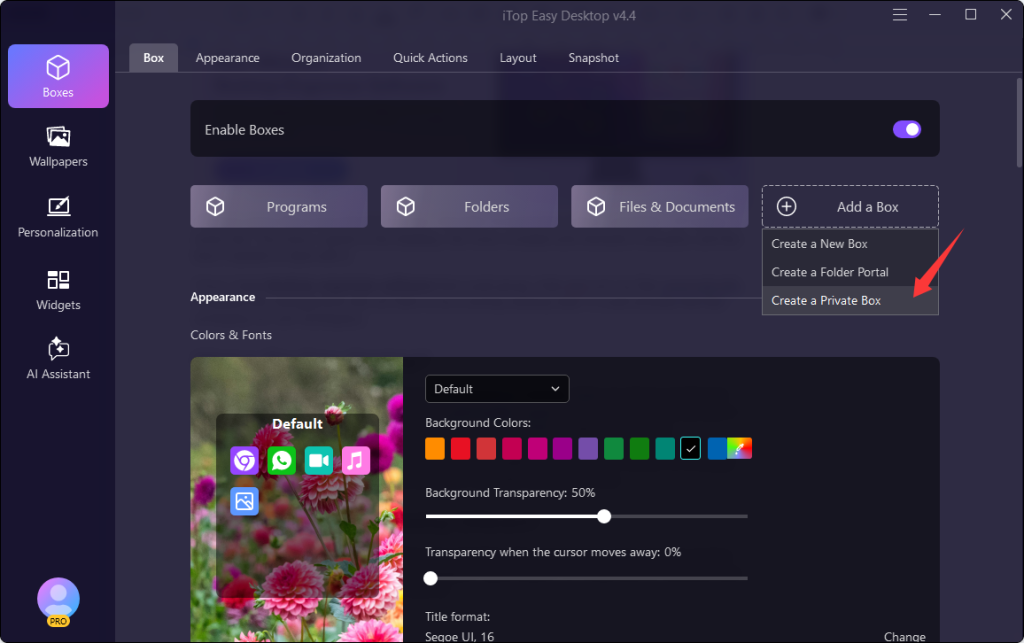
What stood out to me first was that iTop Easy Desktop did not just move icons around. It gave me Boxes, custom organization rules, wallpapers, quick search, a Private Box for sensitive files, widgets, and an AI assistant named PawPal.
That combination made the desktop feel more interactive than a normal Windows screen. I was not just filing things away. I was shaping how I worked every day.
The latest version of this tool also added stronger wallpaper options and improved box display. This helped with sorting rules, better search, and a smoother ChatAI experience, which made the whole thing feel more polished.
How I Set It Up Step By Step
Here’s exactly how I use it now.
Step 1: Install It
- I go to the official iTop Easy Desktop page and download it.
- I run the installer and finish setup using the default prompts.
- After that, I launch the app and let it guide me through the first setup.
Step 2: Enable Boxes
- I open the Boxes tab and click Add a Box to create a new one.
- I give each box a name based on how I actually work, like “Work,” “Downloads,” “References,” or “Photos.”
- I drag files, folders and shortcuts into the right boxes so everything has a home.
Step 3: Create Rules
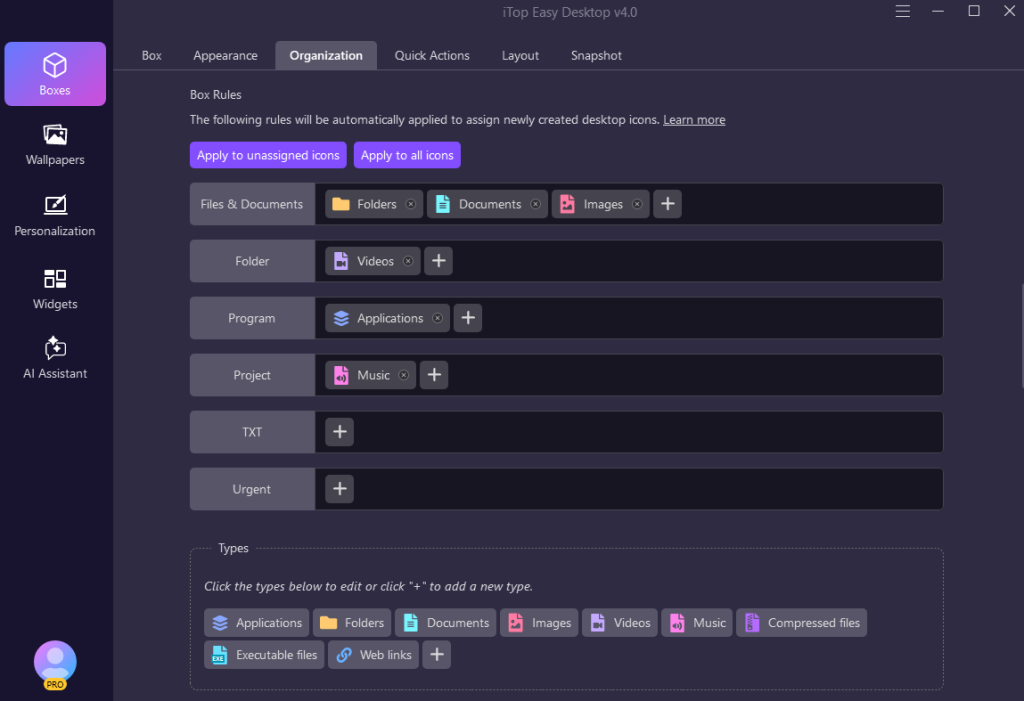
- I open the Organization tab.
- I add rules for each box based on file type, name, time, or usage pattern.
- I click Apply to unassigned icons when I want the software to sort the files I already left out.
- I use the Apply to all icon when I want the whole desktop reorganized at once.
That part is what made file management feel fun. I was setting up my own little system instead of forcing myself to drag things around one by one.
Step 4: Unleash My Personal Style
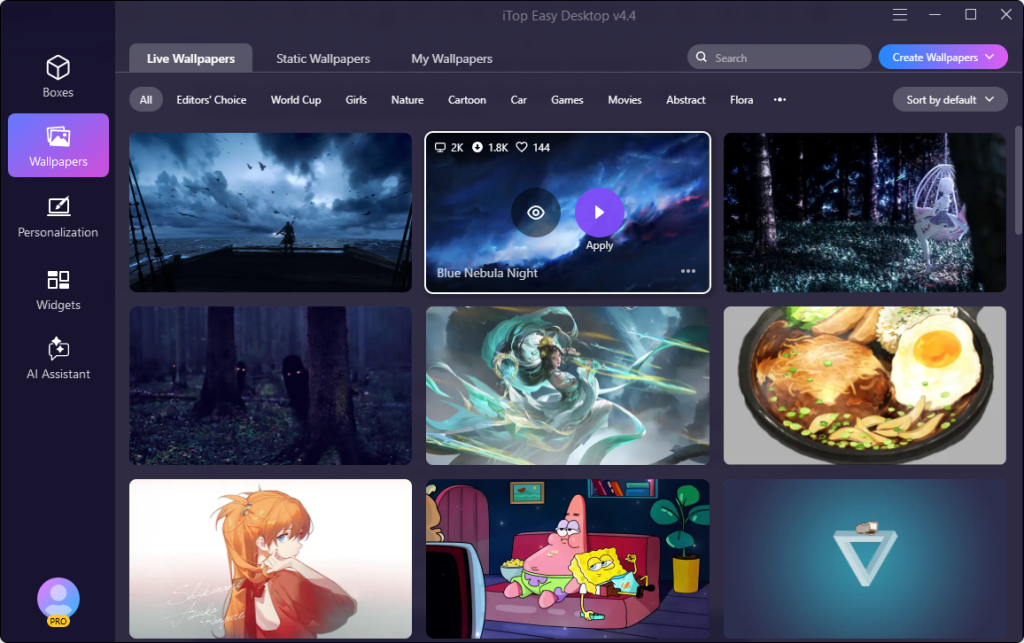
I love being able to transform my screen using iTop Easy Desktop’s collection of over 20,000 wallpapers. I can easily swap between ultra-smooth live wallpapers and static graphics depending on my mood. Everything renders flawlessly in 4K and 8K, making my setup look sharp and polished without any extra effort on my end.
I can redesign and streamline my Windows Start Menu layout for quicker access to apps and a more modern, organized interface. Personalize icons and cursor styles to create an inspiring environment that reflects my personality.
Step 5: Control My Daily Workflow
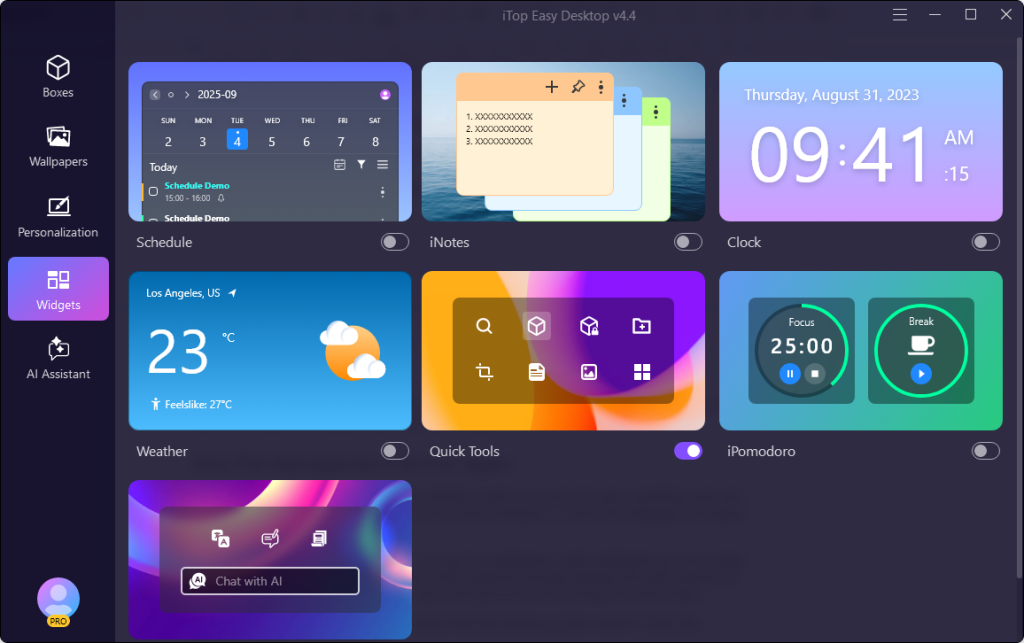
I rely on built-in productivity widgets like iNotes and Schedule to keep my work flowing. Because they sync seamlessly with my Google and Outlook calendars, I can track deadlines and appointments right on my desktop without switching tabs. I also get live weather updates, a quick clock, and an iPomodoro timer to help me stay focused during deep work sessions.
Why File Management Felt Fun Again
What I enjoy most is that I can make the desktop match my mood. If I want something neat and calm I use a minimal layout. If I want a more visual workspace, I switch the wallpaper and adjust my Boxes to match.
The wallpaper library also helps a lot. I can use live wallpapers, static wallpapers or even create my own by uploading images and videos. With maximum storage settings and auto‑cleanup for local wallpapers, I don’t have to worry about that personal touch turning into extra clutter.
The result is that file management no longer feels like tidying up after myself. It feels like building a system I like looking at.
How I Find Files Faster Now
Before iTop Easy Desktop, I relied on memory and chaos. Now I use the built-in Quick Search and AI tools to find things fast.
If I forget where I put something, I search from the desktop instead of opening folder after folder. If I need a little help or a quick answer, then I use PawPal or ChatAI without leaving the workspace. That saves a lot of time and it makes the whole process feel smoother than ordinary file hunting.
The improved search bar can also be moved around easily, which sounds small but makes the interface feel more personal and less rigid.
Why I Stick With iTop Easy Desktop
I keep using iTop Easy Desktop because it turns a boring task into something I actually enjoy opening every day. It helps me keep files sorted, protects private documents, and lets me change the look of my workspace whenever I want.
For me the real win is that desktop organizer software finally feels less like a utility and more like part of how I work and express myself. My desktop is cleaner, my files are easier to manage, and the whole experience feels more playful than stressful.
I started with a messy screen and ended up with a workspace that feels organized, visual, and surprisingly fun to use.
read more : How Accountants Improve Investor And Stakeholder Confidence